
Overview
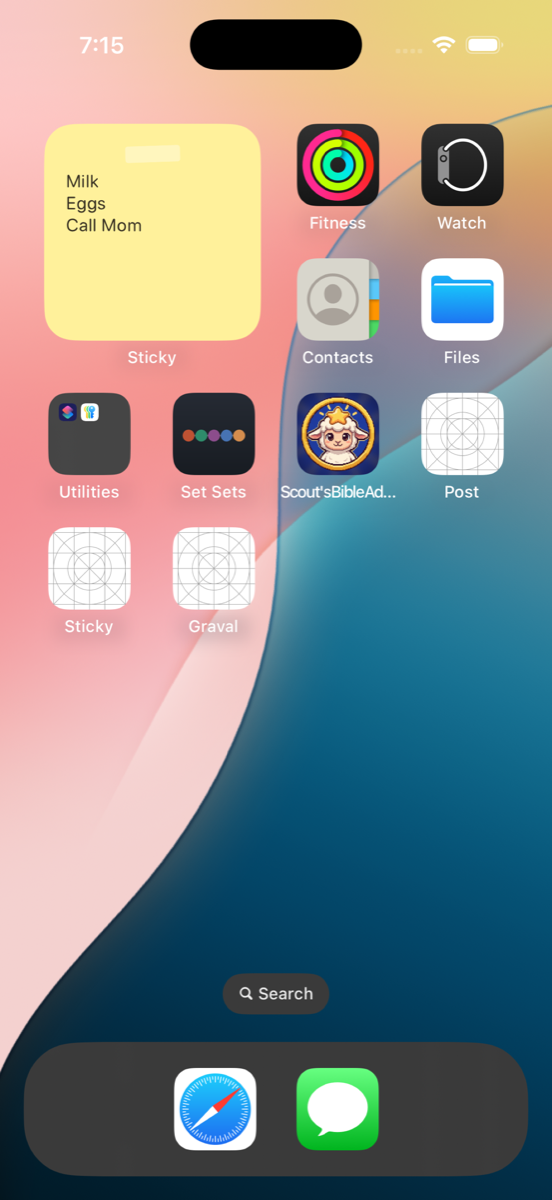
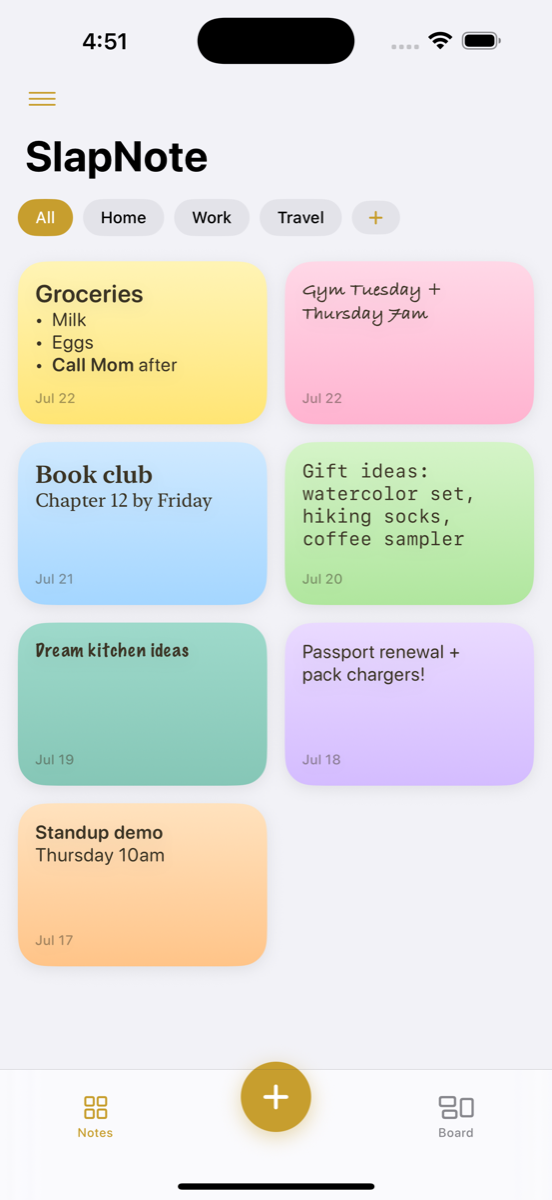
Write a note, add the SlapNote widget, and your note lives right among your app icons — where you'll actually see it. Edit the note and your Home Screen updates in seconds. Runs on iPhone and iPad (iOS 17+), and on Apple Silicon Macs.
Features
Guides
The short version of each task — the help center has the full walkthroughs.
Put a note on your Home Screen
- Write a note in SlapNote.
- Long-press your Home Screen → tap Edit → Add Widget.
- Search SlapNote and add the small or medium widget.
- That's it — the widget shows your latest note and updates within seconds of a save.
Pin a widget to one note
- Long-press the widget → Edit Widget.
- Pick the note you want it to show. Every widget can point at a different note.
Build a mood board
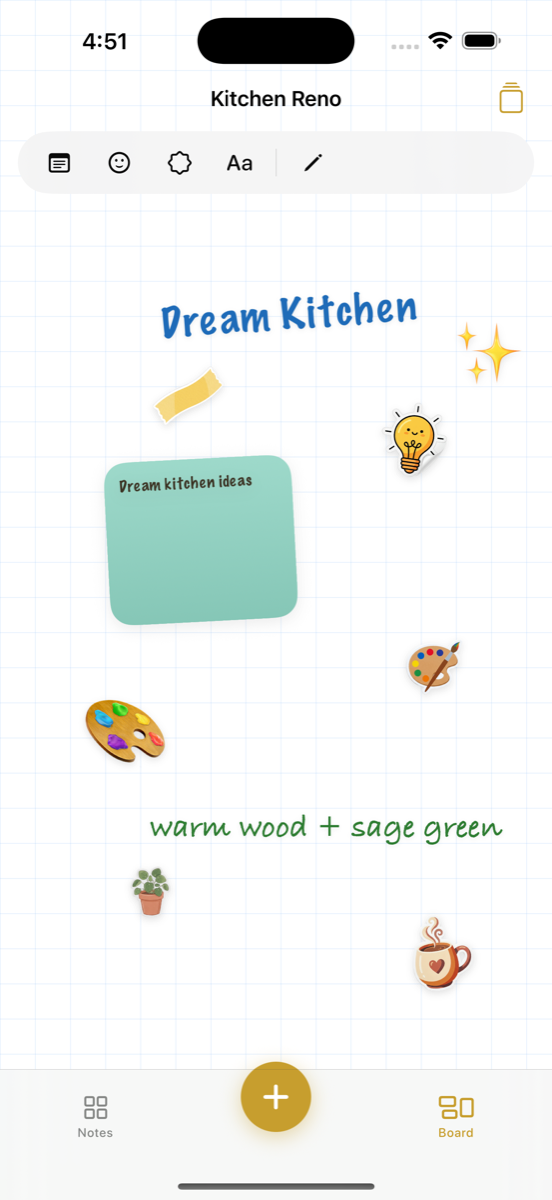
- Open the Boards tab and create a board.
- Place notes, text labels, emoji, and stickers — drag, resize, rotate.
- Draw with the pencil tool. Everything saves to the board automatically.
FAQ
Is it really free?
Yes. No subscription, no paywall, no account. The only purchase is an optional tip in Settings, and it unlocks nothing — it's a tip, and the copy says so.
Where are my notes stored?
On your device, in a private container shared only with the widget. Nothing is uploaded anywhere — no accounts, no analytics, no tracking.
Do my notes sync between devices?
Not yet — notes are per-device in V1. iCloud sync is on the roadmap.
What devices does it run on?
iPhone and iPad on iOS 17 or later, and Apple Silicon Macs via "Designed for iPad."
Refunds on tips?
Tips are processed by Apple — request a refund at reportaproblem.apple.com.